
Getting started with NTN on the nRF9151 Feather
LTE-M and NB-IoT are here to stay — but they end where the towers end. NTN (non-terrestrial network) extends NB-IoT over satellite, which means your device can get a connection anywhere it can see the sky. No gateways to deploy, no LoRa infrastructure to maintain, no coverage maps to squint at.
Getting that first satellite attach, though, is fiddly: special modem firmware, a two-IMSI SIM dance, band locks, and location hints the modem won’t connect without. This post walks the entire path I used to get a live NTN connection on Skylo using the nRF9151 Feather and a Soracom SIM — with every AT command and the actual responses you should expect.
Prefer this as a PDF? I’ve packaged the whole walkthrough as a field guide you can keep on your bench — grab it here.
What you’ll need
- nRF9151 Feather — heads up: the NTN modem firmware requires nRF9151 LACA A1A silicon (module marking:
nRF9151 LACA A1). It won’t load on LACA A0A, nRF91M1, nRF9161, nRF9131, or nRF9160. - TE Connectivity DBA6171C3-BSMAM antenna — the one that actually worked for me. I also tried a Kyocera AVX X9003334-5GDSMB and never got an attach. Antenna choice matters more than you’d think.
- SMA-to-U.FL adapter — TE Connectivity / Linx CSI-SGFI-100-UFFR, to mate the antenna to the Feather’s U.FL connector.
- Soracom IoT SIM — with the
planNT1NTN subscription added (covered below). - VS Code + Zephyr Tools for building and flashing.
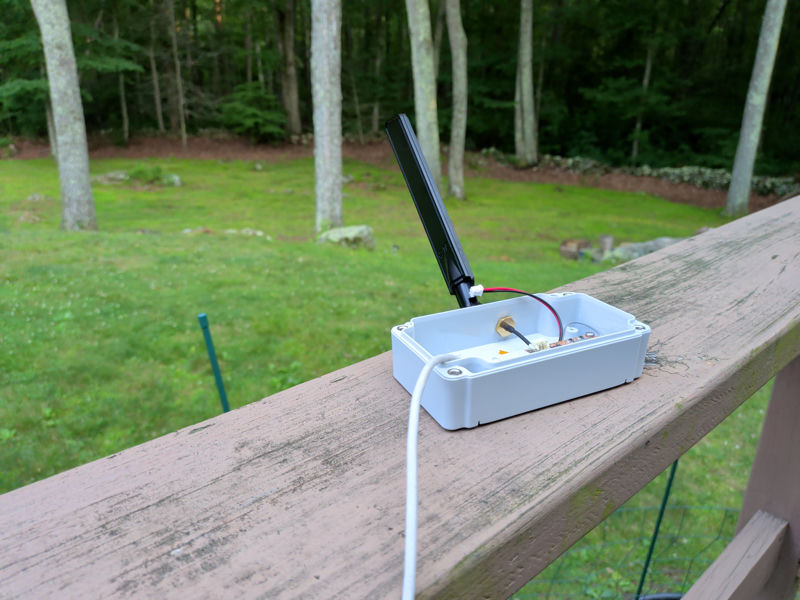
For the field rig pictured above I also used a Bud Industries enclosure (Mouser 546-155C2F22GY) and a Voltaic 0.3 W solar panel with their lithium-ion capacitor charger — optional, but nice for leaving the thing outside while you watch it from your desk.
Step 1: Flash the NTN modem firmware
NTN support lives in a dedicated modem firmware image, separate from the standard nRF91 firmware. Download mfw_nrf9151-ntn_1.0.0.zip (latest as of this writing) from Nordic’s nRF9151 DK downloads page under nRF9151 SiP NTN firmware.
On the nRF9151 Feather, program it with the updater tool, which flashes modem firmware over CMSIS-DAP. Grab the latest binary from github.com/circuitdojo/modem_updater/actions, then:
updater program mfw_nrf9151-ntn_1.0.0.zip
Step 2: Build and flash the serial modem app
For bring-up you want raw AT-command access to the modem, and the serial modem application provides exactly that. Initialize the repo with Zephyr Tools:
https://github.com/circuitdojo/ncs-serial-modem.git
Run Zephyr Tools: Build with circuitdojo_feather_nrf9151/nrf9151/ns as the board and app as the project, then Zephyr Tools: Flash and Monitor. Once the monitor connects, type AT and press Enter:
Connected to /dev/ttyACM0!
AT
*** Booting nRF Connect SDK v3.
OK
An OK back means the app is working and you have a direct line to the modem for everything that follows.
Step 3: Set up the Soracom SIM
Soracom makes basic SIM activation easy — the NTN part takes a little more care. In the Soracom console, open your SIM and add a subscription: planNT1 (coverage: NTN-Satellite + Global).
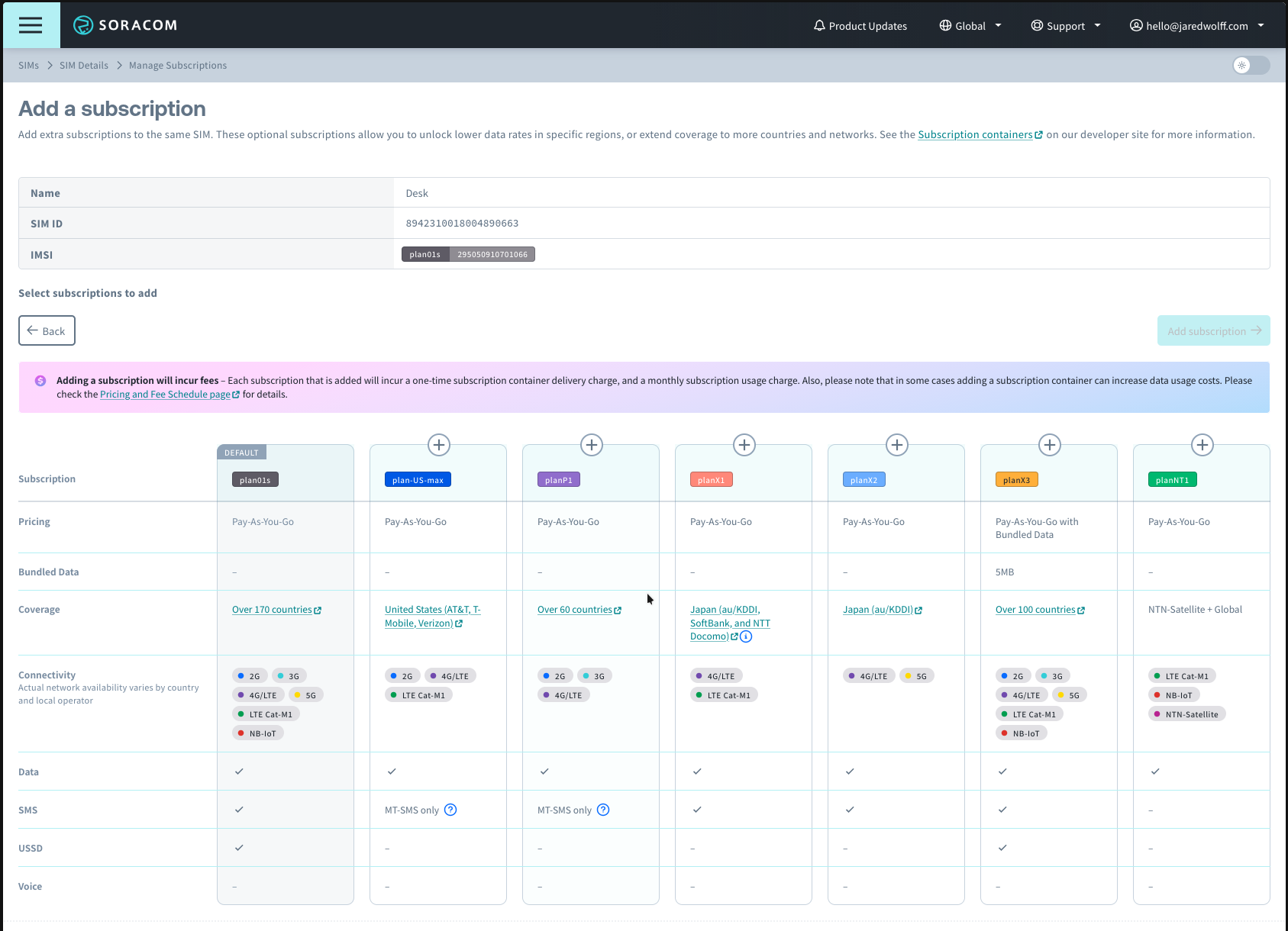
Once subscribed, the SIM carries two IMSIs — one for your original plan and one for planNT1. Only one is active at a time, and switching between them is done from the device with AT commands.
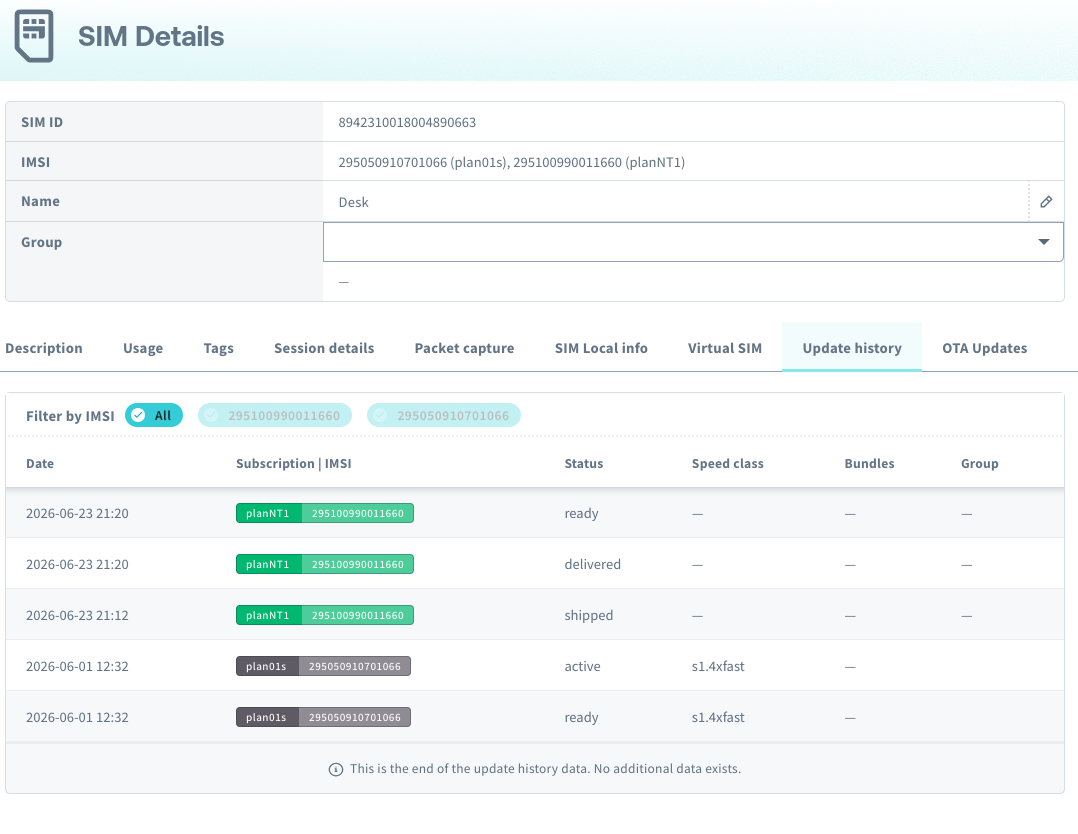
Here’s the part everyone gets stuck on: the planNT1 subscription must first be delivered to the SIM over a regular terrestrial connection. Let the device attach via CAT-M as usual and watch the Soracom console — the plan moves from Shipped to Delivered to Ready. Until it reads Ready, the NTN IMSI isn’t on the card and the switch commands will get you nowhere.
AT+CFUN=1
AT+CEREG=5
AT+CEREG?
+CEREG: 5,4
+CEREG: 5,"0608","00CC2911",7,,,"11100000","11100000"
A normal terrestrial attach while the subscription delivers. Give it a few minutes after it connects.
Switch to the NTN IMSI
With planNT1 showing Ready, tell the SIM applet to activate the NTN IMSI. Enable USAT event reporting, put the modem in a state where the UICC can be refreshed, and send the activation APDU:
AT%USATEV=1
OK
AT+CFUN=41
OK
AT+CSIM=52,"80C2000015D613190103820282811B0100130799F08900010001"
+CSIM: 4,"910B"

%USATEV: REFRESH Requested 4
%USATEV: REFRESH End 0

AT+CRSM=176,28423,0,0,9
+CRSM: 144,0,"082959019009106106"
Then confirm the switch took — the reported IMSI should now match the planNT1 IMSI shown in the Soracom console:
AT+CIMI
295100990011660
What just happened? The AT+CSIM command hands an APDU straight to Soracom’s SIM applet, which swaps the active IMSI and triggers a SIM refresh. It’s Soracom-specific — the payload above is their documented NT1 activation command, not something you need to construct yourself.
Need to switch back to your terrestrial plan (plan01s in my case)? Same dance, different payload:
AT%USATEV=1
AT+CFUN=41
AT+CSIM=52,"80C2000015D613190103820282811B0100130799F05000010001"
+CSIM: 4,"910B"

AT+CIMI
295050910701066
Step 4: Configure the modem for NTN
With the NTN IMSI active, point the modem at the sky. Take the modem offline, switch the system mode to NB-IoT IoT-NTN, and set a band lock for your region:
; Modem off
AT+CFUN=4
; System mode: NB-IoT IoT-NTN only
AT%XSYSTEMMODE=0,0,0,0,1
; Runtime band lock — comma-separated list
AT%XBANDLOCK=2,,"23,255,256"
The bands are:
- 23 — US / Canada
- 255 — UK / Oceania
- 256 — Europe
Next, tell the modem where it is. NTN needs a position to acquire the satellite — and on a live network this must be your kit’s actual location:
; %LOCATION=<operation>[,<latitude>,<longitude>,<altitude>,<accuracy>,<validity>]
AT%LOCATION=2,"41.325061","-72.516329","0",0,0
Finally, create the PDN context for the initial attach. For non-IP data (NIDD):
AT+CGDCONT=0,"non-ip","soracom.io"
…or, if you want IPv4 (UDP) data instead:
AT+CGDCONT=0,"ip","soracom.io"
Which one you send depends on what you plan to do with the link — NIDD is the lean option for tiny payloads; IP gives you UDP sockets like you’re used to.
Step 5: Connect — and prove it
Subscribe to the notifications that let you watch the attach unfold, then bring the modem up:
; +CEREG network registration · +CNEC network error codes
; +CSCON connection state · %MDMEV modem domain events
AT+CEREG=5
AT+CNEC=24
AT+CSCON=3
AT%MDMEV=2
; Activate the modem
AT+CFUN=1
Now be patient — outside with an unobstructed view of the sky, the search can take a few minutes and several attempts. Here’s a real trace from my back deck:
%MDMEV: SEARCH STATUS 1
+CEREG: 4
%MDMEV: SEARCH STATUS 3
+CEREG: 2,"0078","00000333",14
%MDMEV: PRACH CE-LEVEL 1
+CSCON: 1,7,4
+CSCON: 0,7,4
%MDMEV: SEARCH STATUS 3
+CEREG: 2,"2B56","008F9A16",14
%MDMEV: PRACH CE-LEVEL 0
+CSCON: 1,7,4
+CEREG: 5,"2B56","008F9A16",14,,,"11100000","00111000"
Once you see +CEREG: 5, you’re registered on the satellite network. That line is the whole ballgame. Two more commands tell you how good the link is and who you’re talking to:
AT+CESQ
+CESQ: 99,99,255,255,8,10
AT%XMONITOR
%XMONITOR: 5,"","","90198","2B56",14,255,"008F9A16",94,229013,9,22,...
- CESQ — extended signal quality. Here RSRP ≈ −130 dBm (weak, near the floor) and RSRQ ≈ −15.5 dB. Satellite links live down here; don’t panic when the numbers look grim by cellular standards.
- XMONITOR —
5= registered/roaming; PLMN 90198 is Skylo (MCC 901 is the shared international code, 98 is Skylo); AcT 14 = NB-NTN; EARFCN 229013 falls in the band-23 range.
Field notes
A few things I learned the hard way:
- Sky view is everything. NTN needs an unimpeded view of the sky — even trees will block you. Like GPS, it’s not meant for indoor use.
- The antenna matters. If you’re stuck watching SEARCH STATUS loop forever, suspect the antenna before the config.
- Expect retries. The trace above shows several PRACH attempts and search cycles before registration — that’s normal. CE-LEVEL dropping from 1 to 0 means the link is improving.
NTN opens up a whole new paradigm of connectivity for embedded — the same NB-IoT stack you already know, minus the requirement that a tower be anywhere nearby.