
Zephyr 101: West, Overlays, and Faster Builds in Zephyr Tools
📺 Prefer to watch? This post is the companion writeup to the Updates! livestream — same content, with a live demo of every command.
If you’ve been using west build -- -DEXTRA_CONF_FILE=... and watching every incremental build do a full pristine rebuild, this one’s for you. There’s a pattern hiding in West’s behavior that fixes it, and the latest Zephyr Tools bakes it in so you never have to think about it again.
This post is a how-to. Follow the steps in order and you should walk away with a project that builds fast, supports multiple boards cleanly, and keeps its overlay config across target switches.
The Long Command (and What Each Flag Does)
Here’s a real west build invocation I’ve been using for the nRF9151 Feather:
west build -b circuitdojo_feather_nrf9151/nrf9151/ns -p \
  -d build/circuitdojo_feather_nrf9151 --sysbuild \
  -- -DEXTRA_CONF_FILE="env/nrf9151.conf" \
     -DSB_CONFIG_BOOTLOADER_MCUBOOT=y
Quick tour, flag by flag, because every one of these is doing real work:
-b circuitdojo_feather_nrf9151/nrf9151/ns
The board target. The /nrf9151/ns part picks the non-secure variant — that’s the one you want when MCUboot or TF-M is in the picture.
-p (pristine)
Wipe the build directory and start clean. We’re using it here because we’re setting things up for the first time. Spoiler: we won’t need it next time, and that’s the whole point of this post.
-d build/circuitdojo_feather_nrf9151
Per-board build directory. If you have multiple targets in the same project (say, the 9151 plus a native_sim build for testing), giving each one its own -d keeps them from stomping on each other.
--sysbuild
I believe this is the default in newer Zephyr versions, but I’m paranoid and like leaving it explicit. It’s the modern build orchestrator that lets MCUboot, the application, and other images build as one unit.
-- -DEXTRA_CONF_FILE="env/nrf9151.conf"
Everything after the bare -- gets passed through to CMake. EXTRA_CONF_FILE is how you stack an additional Kconfig fragment onto your prj.conf. I keep these in env/ so I can have one for secrets, one for PSKs, one per target, etc.
-- -DSB_CONFIG_BOOTLOADER_MCUBOOT=y
The SB_CONFIG_* prefix means it’s a sysbuild option. Why is it on the command line and not in sysbuild.conf? Because the other board I build for in this same project — native_sim — doesn’t support MCUboot. Setting it project-wide breaks the simulator build. Setting it per-target with -D keeps both happy.
How To: Set Up Per-Target Conf Overlays Properly
Let’s actually walk through setting this up from scratch in your own project.
Step 1. Create an env/ folder at the root of your application:
your-app/
├── CMakeLists.txt
├── prj.conf
├── src/
└── env/
    ├── nrf9151.conf
    └── native_sim.conf
Step 2. Put per-target Kconfig in each file. For example, env/nrf9151.conf might hold things you don’t want compiled into a simulator build:
# Cellular and modem
CONFIG_NRF_MODEM_LIB=y
CONFIG_LTE_LINK_CONTROL=y

# Project-specific PSKs / secrets — keep this file gitignored if it
# contains real credentials, or use placeholders + a build script
CONFIG_LION_BOOTSTRAP_PSK="changeme"
And env/native_sim.conf might enable just the things you need for local testing:
CONFIG_NATIVE_SIM_NATIVE_POSIX=y
CONFIG_LOG=y
Step 3. Do your first build with the full set of flags:
west build -b circuitdojo_feather_nrf9151/nrf9151/ns -p \
  -d build/circuitdojo_feather_nrf9151 --sysbuild \
  -- -DEXTRA_CONF_FILE="env/nrf9151.conf" \
     -DSB_CONFIG_BOOTLOADER_MCUBOOT=y
This populates the CMake cache for that build directory with all your overlay settings.
Step 4. From now on, build with just -d:
west build -d build/circuitdojo_feather_nrf9151
That’s the whole trick. CMake reuses the configured cache, ninja sees no changes, and your iteration drops from 10–30 seconds back to “no work to do.”
The trap to avoid: if you keep passing the -D flags every single build, CMake re-evaluates and triggers a pristine rebuild every time. Even though you’re not changing anything, you’re paying the full cost. After the first build, drop them.
To switch to the simulator target, repeat steps 3 and 4 with the appropriate -b, -d, and EXTRA_CONF_FILE:
# First time:
west build -b native_sim -p -d build/native_sim --sysbuild \
  -- -DEXTRA_CONF_FILE="env/native_sim.conf"

# Every time after that:
west build -d build/native_sim
Two boards. Two build directories. Each one remembers its own config.
How To: Make This Disappear with Zephyr Tools
Doing the per-board cache dance manually works, but it’s tedious. The latest Zephyr Tools extension does it for you.

Step 1: Install Zephyr Tools
Pick your editor:
- VS Code → install from the VS Code Marketplace
- Cursor / VSCodium → install from Open VSX
The extension is open source — issues and PRs welcome on GitHub.
Step 2: Open your project and configure the first board
- Open the Command Palette (
Ctrl/Cmd + Shift + P). - Run Zephyr Tools: Change Project, point it at your app folder.
- Run Zephyr Tools: Change Board, pick your first target (e.g.
circuitdojo_feather_nrf9151/nrf9151/ns). - Open the Zephyr Tools sidebar. Under Project Settings for the selected board, fill in:
- Sysbuild: on
- Extra Conf Files: add
env/nrf9151.conf - Extra CMake Defines: add
SB_CONFIG_BOOTLOADER_MCUBOOT=y
Step 3: Build (Pristine) once to seed the cache
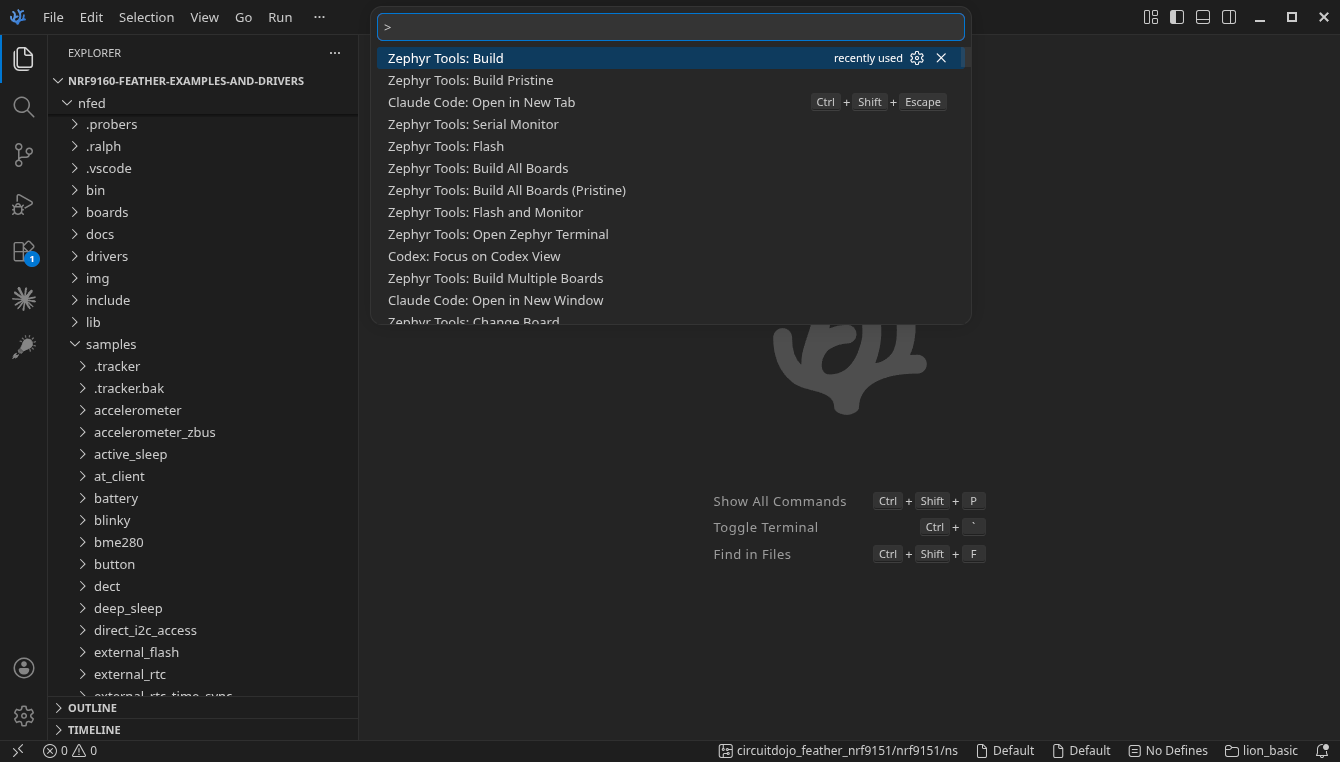
Run Zephyr Tools: Build Pristine from the Command Palette. This is the equivalent of step 3 above — it runs the full command with all the -D flags, and seeds the build directory’s CMake cache.
Step 4: From now on, use plain Build
Run Zephyr Tools: Build. The extension calls west build without re-passing the -D flags, so the cache reuses and you get the fast incremental path.
That’s Smart Builds — there’s no special mode to turn on, it’s just the extension doing the right thing. In practice this means hitting Build now feels the way it should: a couple seconds, not thirty.
How To: Build All Your Boards With One Command
The other workflow that used to drive me nuts: making a change, building for the 9151, then having to manually switch boards to make sure the same change didn’t break native_sim. Switch, build, switch back, build, repeat.
The new Build All Boards command fixes this.
Step 1. Make sure each board you care about has been built at least once individually. Build All Boards iterates over boards that already have a build directory — it doesn’t auto-discover targets, it just fans out across what you’ve already configured.
Step 2. Run Zephyr Tools: Build All Boards from the Command Palette. It iterates over every configured target and builds each one with the cached settings.
Step 3. When you’ve made significant changes (toolchain switch, dependency bump, etc.) and want a clean run across everything, use Zephyr Tools: Build All Boards (Pristine) instead.
This is genuinely the workflow I wish I had two years ago. “Change once, validate everywhere” with one command.
How To: Persist Per-Board Settings with .zephyr-overrides.json
The other thing that used to bug me: switching boards in Zephyr Tools would lose all the overlay configuration for the previous one. Now those settings live in a .zephyr-overrides.json file in your project, keyed by board target.
Here’s what mine looks like for the 9151 target:
{
  "circuitdojo_feather_nrf9151/nrf9151/ns": {
    "sysbuild": true,
    "extraConfFiles": [
      "env/nrf9151.conf"
    ],
    "extraOverlayFiles": [],
    "extraCMakeDefines": [
      "SB_CONFIG_BOOTLOADER_MCUBOOT=y"
    ],
    "manifest": "west-ncs.yml",
    "manifestDir": "lion-client"
  }
}
A few things worth knowing:
- It’s per-board. Switch targets and your settings come with you automatically.
- You don’t edit this by hand. The extension writes it from the Project Settings sidebar, and updates it any time you change a setting in the UI or via a Zephyr Tools command. If you do hand-edit it (e.g. to commit a known-good config to your repo), the extension picks up your changes on the next build.
extraConfFilesandextraCMakeDefinesmap directly to what we did on the CLI above — sameEXTRA_CONF_FILEandSB_CONFIG_BOOTLOADER_MCUBOOTpattern, just persisted instead of typed.extraOverlayFilesdoes the same forEXTRA_DTC_OVERLAY_FILEif you have device-tree overlays per board.- This file is what Build All Boards reads when it iterates targets. Configure each board once via the sidebar, and Build All takes it from there.
Should you commit .zephyr-overrides.json to git? My take: yes for shared settings (like enabling MCUboot for a particular hardware target). If you have personal-only stuff in there (build paths to local secrets), keep that out via a .gitignore entry plus an env/ file.
How To: Per-Target West Manifest Selection
The newest addition — and a bit of a power-user feature — is the manifest and manifestDir keys in .zephyr-overrides.json. They let you pick a different West manifest per board target in the same project.
Why does this matter? Concrete case: I’ve got one board that needs the full nRF Connect SDK (so its manifest pulls NCS), and another board that’s happier on vanilla Zephyr. Before this, you basically had to pick one manifest and live with it.
To set this up:
Step 1. Have multiple manifest files in your repo. For example:
your-app/
├── west.yml          # vanilla Zephyr manifest
├── west-ncs.yml      # NCS manifest
└── lion-client/
    └── west-ncs.yml  # alternate location
Step 2. In Project Settings for the target that needs NCS, set:
- Manifest:
west-ncs.yml - Manifest Dir:
lion-client(or whatever subfolder if it’s not at the root)
Step 3. Leave Manifest unset (or pointing at west.yml) for targets that should use vanilla Zephyr.
Zephyr Tools handles re-running west update against the right manifest when you switch targets. This is niche, but if you’ve ever maintained two parallel forks of the same app to dodge manifest conflicts, you know exactly why this is here.
Troubleshooting: My Builds Still Feel Slow
If you went through the steps above and incremental builds are still doing a full rebuild every time, work through this checklist:
- Are you still passing
-Dflags on the command line? Check your shell history or VS Code task config. Anything after the bare--will trigger CMake re-evaluation. Drop everything except-d build/<board>. - Are you using
-por--pristine? That literally means “wipe and rebuild.” Useful occasionally; not for inner-loop work. - Did you do a successful Build (Pristine) for that board first? The cache only exists once you’ve completed one full configured build. Until then, every build is effectively pristine because there’s nothing to reuse.
- Did you change a
prj.conf, an overlay file, orCMakeLists.txt? Those legitimately invalidate the cache. That’s CMake doing its job, not a bug. - Did you switch board targets without changing
-d? The build directory is per-board. If two targets sharebuild/, each switch effectively pristines the other one. Use unique build dirs. - Is your
EXTRA_CONF_FILEpath resolvable from the build dir? If the path is relative and broken, CMake will reconfigure trying to find it. Absolute paths or paths relative to the app root are safest. - Are you on the latest Zephyr Tools? Smart Builds and Build All landed in recent releases — older versions don’t have them.
Where to Get It
- VS Code Marketplace
- Open VSX (for Cursor, VSCodium, etc.)
- GitHub — open source, issues and PRs welcome
Wrap-up
If you take one thing from this: after the first build, drop the -D flags from your command line. The cache has them. You don’t need to pass them again. That single change makes West feel like it should.
Everything else — Smart Builds, Build All Boards, .zephyr-overrides.json, per-target manifests — is the extension applying that same idea consistently so you don’t have to think about it.
If you’ve got ideas for what should be in the next release, drop them in community.circuitdojo.com. And if you’d rather watch than read, the full walkthrough is on the Updates! livestream.